
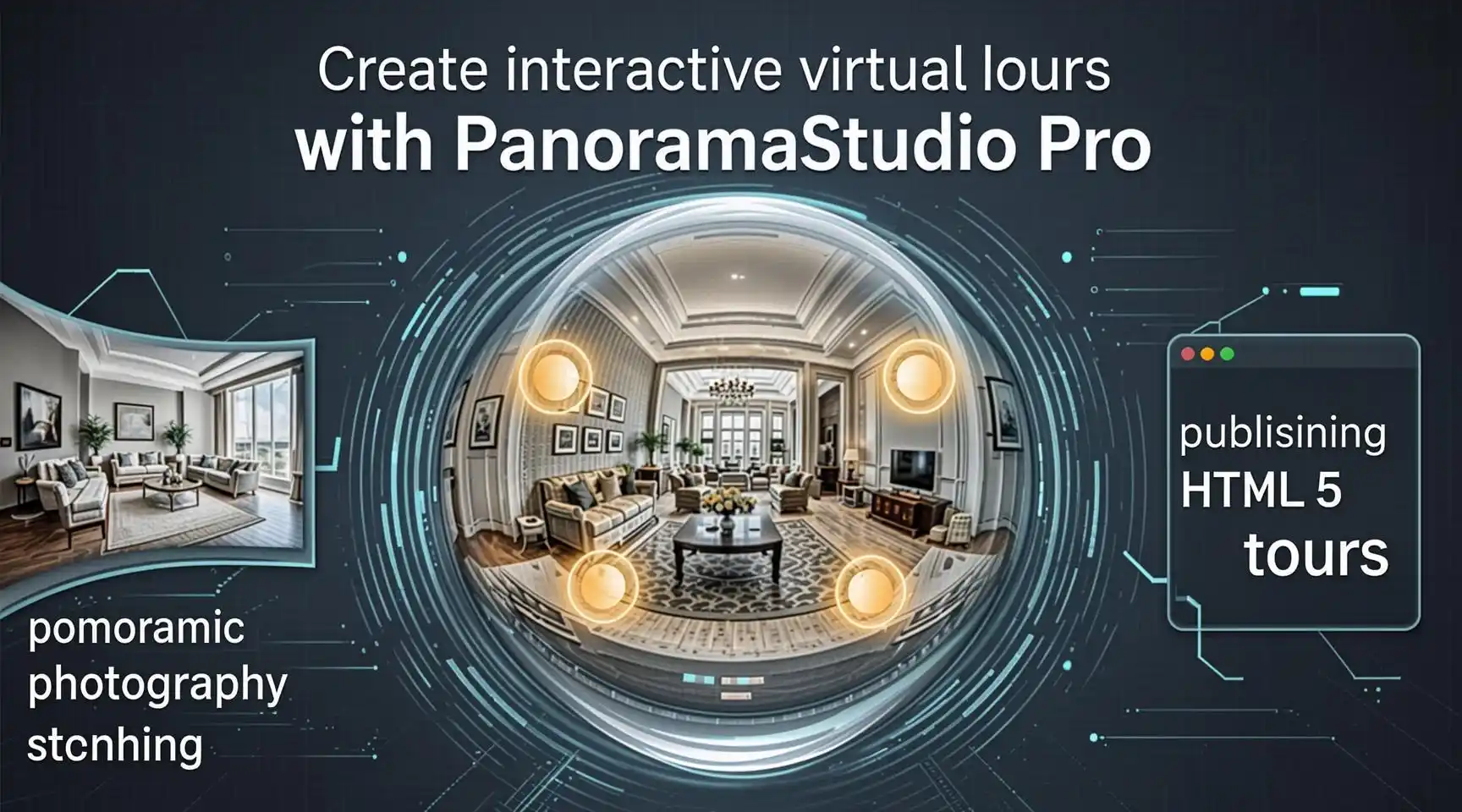
How to Create Interactive Virtual Tours with PanoramaStudio Pro: The Complete Step-by-Step Guide
Create interactive virtual tours with PanoramaStudio Pro — a complete step-by-step guide covering panoramic photography, stitching, hotspots, and publishing HTML5 tours.
Introduction
Virtual tours have quietly become one of the most persuasive forms of digital content on the web. A prospective homebuyer can walk through a property from their sofa. A traveler can “test drive” a hotel room before booking. A university can showcase its campus to international applicants who will never visit in person before enrolling. In each case, the magic comes from the same recipe: seamless panoramic imagery, smooth navigation, and interactive hotspots that make the viewer feel physically present in the space.
The challenge, for most people, is that professional virtual tour production sounds expensive and technically intimidating. Dedicated 3D capture systems can cost thousands of dollars, and many tour platforms lock you into monthly subscriptions. This is where PanoramaStudio Pro stands out. It is a powerful, one-time-purchase desktop application that takes you all the way from a folder of overlapping photographs to a polished, self-hosted, interactive HTML5 virtual tour — without ongoing fees and without sacrificing image quality.
This guide walks you through the entire process, from choosing the right equipment and shooting technique, through stitching and editing your panoramas, to linking multiple scenes together with hotspots and publishing the finished tour on your own website. Whether you are a real estate agent, photographer, tourism marketer, educator, or hobbyist, by the end of this article you will know exactly how to build virtual tours with PanoramaStudio Pro from start to finish.
Table of Contents
- What Is PanoramaStudio Pro?
- Why Interactive Virtual Tours Matter
- System Requirements and Installation
- Essential Equipment for Panoramic Photography
- Shooting Techniques for Stitchable Panoramas
- Planning Your Virtual Tour Structure
- Understanding the PanoramaStudio Pro Workflow
- Step 1: Importing and Assembling Your Images
- Step 2: Aligning, Stitching, and Blending
- Step 3: Editing and Enhancing Your Panorama
- Creating Full 360° Spherical Panoramas
- Building the Interactive Tour: Hotspots and Scene Linking
- Customizing and Exporting the HTML5 Viewer
- Publishing and Embedding Your Virtual Tour
- Advanced Techniques
- Troubleshooting Common Problems
- Best Practices and Pro Tips
- Conclusion
- Keywords, Hashtags, and Disclaimer
- What Is PanoramaStudio Pro?
PanoramaStudio Pro is a desktop panorama-stitching application available for Windows and macOS. Its core job is to take a series of overlapping photographs — shot by panning a camera across a scene — and merge them into a single, seamless panoramic image. What distinguishes the Pro edition from the standard version is the addition of advanced capabilities that matter specifically for virtual tour creators:
- Full 360° × 180° spherical panorama support, producing equirectangular images suitable for immersive viewers
- Multi-row and gigapixel stitching for extremely high-resolution panoramas
- RAW file support, letting you stitch directly from camera RAW files for maximum quality
- Interactive HTML5 panorama export, complete with a built-in viewer that works on desktop and mobile browsers
- Hotspot and tour features, allowing you to link multiple panoramas together into a navigable virtual tour
- HDR-style exposure handling and correction tools for challenging lighting
- Little-planet and other projection exports for creative presentation
The software is licensed as a one-time purchase rather than a subscription, which makes it especially attractive for freelancers and small studios that want predictable costs. While it does not replace full 3D capture platforms that generate point clouds or floor plans automatically, it excels at what most virtual tours actually need: gorgeous, high-resolution, fast-loading 360° scenes connected by intuitive navigation — hosted on your server, under your control.
- Why Interactive Virtual Tours Matter
Before diving into the technical workflow, it is worth understanding why this investment of time pays off. Interactive virtual tours deliver measurable advantages across many industries:
Real estate. Listings with virtual tours consistently generate more engagement than photo-only listings. Buyers can pre-qualify properties remotely, which means the people who request in-person showings are more serious. Tours also act as a 24/7 open house.
Hospitality and tourism. Hotels, resorts, restaurants, and vacation rentals use tours to set accurate expectations, reduce refund disputes, and increase booking confidence. Destination marketing organizations use them to showcase attractions before a trip is even booked.
Education. Universities and schools build campus tours for international applicants. Training organizations document labs, workshops, and facilities.
Museums, galleries, and heritage sites. Tours democratize access to cultural spaces and serve as permanent digital archives of exhibitions.
Construction, engineering, and insurance. Panoramic documentation creates timestamped visual records of site conditions for progress tracking, disputes, and claims.
Events and venues. Wedding venues, conference centers, and event spaces use tours to help planners visualize layouts without repeated site visits.
The common thread: a virtual tour answers questions that static photos cannot — “How does this room connect to that one? How big does it actually feel? What do I see when I turn around?” That sense of spatial presence is what PanoramaStudio Pro helps you create.
- System Requirements and Installation
PanoramaStudio Pro is a relatively lightweight application compared to modern video editors, but stitching is memory-intensive, so your hardware matters more than the minimum specs suggest.
What you need (practical recommendations):
- A Windows 10/11 or a recent macOS machine
- 16 GB of RAM or more — you can stitch with 8 GB, but multi-row and spherical projects with RAW files will benefit enormously from extra memory
- A multi-core CPU for faster rendering
- Plenty of free disk space — a single spherical project shot in RAW can easily exceed 1–2 GB of source images, and rendered panoramas plus exported tour files add more. An SSD noticeably speeds up stitching.
- A display resolution of at least 1920 × 1080 for comfortable editing
Installation steps:
- Download the installer from the official PanoramaStudio website.
- Run the installer and follow the prompts.
- Enter your license key when prompted (the software typically runs in trial mode first, so you can evaluate it before purchasing).
- Before your first real project, open the preferences and point the temporary/working folder to your fastest drive with ample free space.
Tip: Stitching performance scales with RAM and disk speed far more than with GPU. If you plan to make tours regularly, prioritize a machine with 32 GB of RAM.
- Essential Equipment for Panoramic Photography
You do not need exotic gear to produce excellent virtual tours, but a few items dramatically improve stitching quality and consistency.
Camera
Almost any DSLR or mirrorless camera with manual exposure controls works well. Even modern smartphones can produce acceptable results for casual projects, but a camera with interchangeable lenses gives you the wide fields of view and manual consistency that professional tours demand.
Lens
For interiors, wide-angle lenses are essential — rooms are small, and you need to capture walls, floor, and ceiling efficiently:
- Full-frame cameras: a 14–24 mm or 15–30 mm zoom, or a 16 mm prime
- APS-C / crop cameras: a 10–20 mm zoom
- Fisheye lenses (8–10 mm): the efficiency champion for 360° work — fewer shots per scene, though with more edge distortion (which spherical stitching handles well)
Tripod
A sturdy tripod is non-negotiable. Every frame must share the same rotation center, and handheld shooting introduces errors that cause ghosting and misalignment, especially indoors where the camera is close to objects.
Panoramic head (highly recommended)
A panoramic head (also called a pano head or nodal head) positions the camera so it rotates around the lens’s no-parallax point (NPP) — often loosely called the nodal point. If you rotate around the wrong point, nearby objects shift relative to distant ones between shots (parallax error), and the software cannot resolve the geometry cleanly. Entry-level pano heads are affordable and pay for themselves after one or two client projects.
Also useful: a leveling base with a bubble level (so the camera pans around a perfectly vertical axis), and a remote shutter or intervalometer to eliminate camera shake.
Budget path
If you are just starting: smartphone + tripod + plenty of overlap can produce a respectable tour for practice and portfolio-building. Upgrade to a camera, wide lens, and pano head as paid work justifies it.
- Shooting Techniques for Stitchable Panoramas
The stitching software can only be as good as the photos you feed it. Follow these rules and PanoramaStudio Pro will reward you with near-flawless stitches.
- Lock everything down in manual mode
- Manual exposure (M): auto-exposure changes between frames create visible brightness bands in the merged panorama. Meter one frame, then keep identical settings for the whole scene.
- Manual white balance: set a fixed Kelvin value; auto white balance will shift colors between frames.
- Manual focus: focus once (roughly at the hyperfocal distance or on a mid-room subject), then switch the lens to manual. Auto-focus hunting between shots ruins alignment.
- Fixed ISO: use your base ISO (usually 100) for cleanliness.
Aperture around f/8–f/11 is a sweet spot for sharpness and depth of field in interiors.
- Shoot RAW
RAW files give you latitude to correct exposure and white balance in post without banding, and PanoramaStudio Pro can process RAW source images directly.
- Ensure generous overlap
Aim for 25–35% overlap between consecutive frames. Practical rule: the rotation increment between shots should be no more than about 70% of your lens’s horizontal field of view. Most panoramic heads have click-stop or marked increments — set them before you arrive on site.
Approximate frames needed for a full 360° sphere (verify with your own lens and head):
| Lens setup | Shots around | Plus |
| 8 mm fisheye (full frame) | 3–4 | 1 up (zenith), 1 down (nadir) |
| 10 mm fisheye (crop) | 6 | 1 up, 1 down |
| 16 mm rectilinear (full frame) | 10–12 | 1 up, 1 down |
Fewer frames means faster stitching but less overlap tolerance; when in doubt, shoot more.
- Control the lighting
- Avoid the sun in frame where possible — direct sun causes extreme contrast and lens flare.
- For high-contrast interiors with bright windows, consider bracketing exposures (e.g., three frames per position at −2 / 0 / +2 EV) so you can blend them later.
- Turn on interior lights consistently; avoid mixed flickering sources if you can.
- Minimize moving objects
People, pets, screens, and reflected movement between frames cause ghosting. Ask people to stay still or step out, close blinds on problem windows, and work quickly per position.
- Capture zenith and nadir
For a complete sphere, take one frame pointing straight up (zenith) and one pointing straight down (nadir). The nadir frame is your raw material for removing the tripod later — an essential step for professional-looking tours.
- Work methodically
Complete each node fully before moving on. Use a consistent naming scheme (e.g., kitchen_01…kitchen_12, hall_01…) so you can match image sets to scenes later without guesswork.
- Planning Your Virtual Tour Structure
Experienced tour builders storyboard before they ever unpack the tripod. Sketch the space and answer three questions:
- Which locations become scenes (nodes)? Typical interiors: every room plus connecting hallways; exteriors: entrance, garden, street view. For a house tour, 6–12 nodes is common.
- How do scenes connect? From the kitchen, where can the viewer go — the dining room, the hallway, the garden? Draw arrows on your sketch. These arrows become your hotspots.
- What should each scene’s starting view be? Viewers begin each scene facing something appealing — the property’s best angle, not a blank wall.
Photograph each node with the tour connections in mind: if the doorway to the hallway will be a hotspot, make sure that doorway is visible and well-exposed in the kitchen panorama. A little foresight here saves hours of re-shooting.
- Understanding the PanoramaStudio Pro Workflow
The PanoramaStudio Pro pipeline for a virtual tour looks like this:
- Create a panorama from each node’s image set → a single stitched, edited panoramic image (ideally a full equirectangular 360° × 180°).
- Export interactive panoramas — PanoramaStudio Pro generates an HTML5 viewer for each scene.
- Link scenes with hotspots — in the interactive-panorama/tour tools, you place clickable hotspots that jump the viewer from one scene to another.
- Export the tour as a folder of HTML, JavaScript, and image files.
- Upload the folder to your web server and embed or share it.
Because each panorama is built and polished independently, the software keeps projects manageable and lets you re-export a single improved scene without rebuilding the entire tour. (Exact menu locations for hotspot and tour features vary slightly between versions — PanoramaStudio 4 Pro is the current major version at the time of writing — so explore the export and interactive-panorama dialogs in your build, and consult the official manual for version-specific details.)
- Step 1: Importing and Assembling Your Images
- Launch PanoramaStudio Pro and start a new panorama project.
- Add your images. Select the full sequence for one node — for a spherical panorama this includes the around-frames plus the zenith and nadir shots. The software can read camera RAW files as well as JPEG/TIFF.
- Check focal length detection. PanoramaStudio Pro reads EXIF data and usually identifies the lens focal length automatically. If your files lack EXIF (e.g., heavily processed exports), you will be asked to provide it manually — accuracy here is important, because focal length drives the geometry of the stitch. Use the software’s templates for common lenses and fisheye setups if available.
- Confirm the panorama type. Choose the single-row, multi-row, or 360°/spherical mode according to what you shot.
- Order matters (only if automatic detection struggles). Usually the software handles ordering itself; with tricky sets, verify the sequence runs logically around the scene.
At this point you have told the software what you shot; the next step is letting it figure out how the pieces fit.
- Step 2: Aligning, Stitching, and Blending
- Run the alignment. PanoramaStudio Pro analyzes overlapping regions, finds matching features (control points), and computes camera positions. For clean source images this step is fully automatic and takes seconds to a few minutes.
- Inspect the alignment. Preview the merged result. Look for: wavy horizons, doubled edges (misalignment), ghosted people/objects, or a segment that failed to join.
- Fix problems with manual control points. If a seam failed, you can manually place corresponding points on the two problem images — pick an unambiguous, high-contrast detail (a corner, a pattern, a switch plate) visible in both frames, and add a pair of points. A few well-placed manual points usually rescue a stubborn connection.
- Apply automatic corrections. Enable the software’s exposure correction to smooth brightness differences between frames, and vignetting correction to remove darkened corners that would otherwise create a “pulsing” band across the sky or walls.
- Render the panorama. Choose your output — for virtual tours, a full spherical (equirectangular) projection with a 2:1 width-to-height ratio (e.g., 8000 × 4000 px for high quality; 6000 × 3000 is often plenty and loads faster). Output at 8-bit for web delivery unless you have a specific reason for more depth.
- Check for ghosts. Zoom into areas where anything moved between shots. Some ghosting can be addressed by editing source images or retouching later.
Blending tips:
- If you notice faint seams in smooth gradient areas (skies, painted walls), more overlap when shooting is the real cure; re-shoot if the project warrants it.
- Keep the raw stitched master (TIFF or high-quality export) as your archival version — you can always re-derive web versions from it.
- Step 3: Editing and Enhancing Your Panorama
PanoramaStudio Pro includes a solid set of built-in edit tools, so many projects never need to leave the application:
- Crop — for partial panoramas; for full spheres, crop carefully to maintain the 2:1 equirectangular ratio.
- Straighten and level — correct a tilted horizon so the tour does not feel seasick. If you leveled your tripod properly, this is usually a tiny adjustment or none at all.
- Auto-contrast, curves, and color tools — lift interiors shot in mixed light; fix color casts from tungsten bulbs or window daylight.
- Sharpening — apply gentle output sharpening for web delivery; avoid halos on high-contrast edges.
- Edit individual source images — if one frame in the set is flawed (a lintel clipped by auto-bracketing, a passing car), you can retouch that source image and re-run the stitch.
Removing the tripod (nadir patch)
The tripod in the floor is the most telling sign of an amateur tour. Options, from easiest to best:
- Rotate and retouch: rotate the equirectangular image so the nadir is viewable, then clone/patch the tripod area with nearby floor texture. Simple floors (tile, carpet, wood) retouch beautifully.
- Shoot a dedicated floor plate: after completing the around-and-up sequence, remove the camera from the head and handhold a frame of the floor directly beneath the tripod, then patch it in during editing.
- Logo patch: many professionals place a small branded circular logo over the nadir — it hides the tripod and builds brand recognition.
Whichever method you choose, apply it to the master before exporting the interactive scene, so every export carries the fix.
- Creating Full 360° Spherical Panoramas
A quick geometry refresher to keep your exports correct:
- An equirectangular panorama is a flattened “world map” of the entire sphere: full 360° horizontally, full 180° vertically, always 2:1 (width:height).
- The horizon runs through the vertical center of the image; the zenith is the top edge, the nadir the bottom edge. Both edges stretch into the poles — this is normal, not an error.
- In the HTML5 viewer, the equirectangular image is re-projected so the viewer sees a natural rectilinear window into the sphere and can look up, down, and around.
Recommended export sizes for tours:
- Premium quality: 8192 × 4096 px (or your lens’s practical maximum)
- Balanced (most tours): 6000–8000 px wide, exported as quality ~80 JPEG
- Fast/mobile-first: 4096 × 2048 px for bandwidth-constrained audiences
Also export a downscaled preview version if your hosting plan or audience is bandwidth-sensitive — some workflows serve the small version first and swap in the full-resolution image as it loads.
Repeat Steps 8–11 for every scene in your tour, keeping project files organized in clearly named folders.
- Building the Interactive Tour: Hotspots and Scene Linking
This is where individual panoramas become a tour. The concept: each exported panorama displays in an HTML5 viewer, and you place hotspots — clickable markers embedded in the scene — that navigate to other panoramas (or to external URLs, depending on the options in your version).
Step-by-step: linking your scenes
- Export scene panoramas using PanoramaStudio Pro’s interactive panorama (HTML5) export. Each scene becomes its own viewer output (an HTML file plus supporting data files).
- Open the hotspot editor for a scene — in PanoramaStudio Pro this is part of the interactive export/tour workflow. You will see your panorama with controls for adding hotspot markers.
- Place navigation hotspots. For each connection in your tour storyboard (the arrows you sketched earlier), click on the appropriate location in the panorama — typically on doorways, paths, or passages — and assign it a link to the target scene’s output.
- Position hotspots where people expect them. Doorways, hall entrances, and staircases are intuitive click targets. Consistency builds trust: if clicking doors navigates in one scene, it should in all scenes.
- Add as many hotspots as the scene needs. A kitchen might link to the dining room, the hallway, and the garden.
- Repeat for every scene, so the whole tour is navigable in both directions (kitchen → hallway and hallway → kitchen).
- Preview the tour in your browser. Click every hotspot. Confirm each lands in the right place with a sensible starting view. Test that there are no “dead ends” — every scene should have at least one way back toward the tour’s entry point.
Hotspot design tips
- Visibility: hotspot markers should be noticeable but not ugly. Many builders use small, semi-transparent circular markers or subtle arrows; the goal is discoverability without visual clutter.
- Start-view synergy: when a viewer enters a new scene, the target hotspot of the previous scene should roughly be behind or near them, and the most attractive angle should be ahead.
- Optional external links: depending on the export options available in your version, hotspots may also open web pages — useful for “Book a viewing,” pricing sheets, or booking engines.
- Keep the loop closed: ensure the first scene is reachable from everywhere, so viewers never feel lost.
Version note: PanoramaStudio’s tour tooling has evolved across releases. If your build’s hotspot/tour features feel limited — for example, if you want info-point popups with photos, floor-plan maps, or guided auto-play — see the hybrid workflow in Section 15: export equirectangular images from PanoramaStudio Pro and finish the tour in a dedicated tour platform. Your stitched panoramas remain the valuable asset either way.
- Customizing and Exporting the HTML5 Viewer
PanoramaStudio Pro’s HTML5 export produces a viewer that runs in any modern browser — desktop and mobile — with no plugins required. When exporting an interactive panorama or tour, you can typically configure:
- Viewer dimensions — fixed pixel size or responsive/full-window layouts
- Initial view direction and zoom — set the opening angle for each scene (this is your “hero shot”)
- Zoom limits — prevent over-zooming into pixel mush
- Autorotation — gentle automatic panning that starts after idle, popular for unattended kiosks and trade shows; keep it slow and always allow user takeover
- Toolbar and controls — fullscreen button, zoom buttons, help; enable fullscreen for immersion
- Loading behavior — background color/placeholder while the panorama loads
- Mobile controls — touch-drag panning, pinch zoom, and (on supported devices) motion/gyroscope-based look-around, which dramatically increases the “being there” feeling on phones
Export output: the software writes a folder containing the HTML file(s), the viewer’s scripts/styles, and your panorama images. Treat this folder as a single unit — renaming or moving files individually will break links.
Local test before publishing:
- Export the tour to a clean folder (e.g., tour_ clientname_v1/).
- Double-click the main HTML file and walk through the entire tour in your browser.
- Then test on a phone (temporarily serving the folder locally, or uploading to a staging directory) — touch behavior and loading time on mobile data are worth verifying before clients see it.
- Publishing and Embedding Your Virtual Tour
Because PanoramaStudio tours are plain HTML5, you can host them anywhere — your own website, a client’s server, or any web host. This is one of the biggest advantages over subscription tour platforms: no per-tour fees, no vendor lock-in, and full branding control.
Uploading
- Connect to your web server via FTP/SFTP (FileZilla, or your host’s file manager).
- Upload the entire exported tour folder — e.g., https://yoursite.com/tours/oakstreet-house/.
- Confirm the folder permissions allow the files to be served publicly.
Embedding in a web page
Use an iframe on any page:
WordPress users can paste this into a Custom HTML block. Set the height generously (tours feel cramped below ~600 px) and always include allowfullscreen.
Sharing
- Direct link: send …/tours/oakstreet-house/ in emails, MLS remarks, WhatsApp, and listings.
- Social media: link posts perform well; pair the URL with an attractive still frame from the tour as the preview image.
- QR codes: print a QR code pointing at the tour URL for brochures, window displays, and on-site signage — brilliant for open houses.
- Google Street View: export suitable 360° equirectangular panoramas (per Street View’s technical requirements) and publish them through the Street View app/publisher for extra local visibility — a powerful, free marketing channel for businesses and venues.
Performance hygiene
- Serve over HTTPS (mixed-content warnings will block embedded tours on HTTPS pages).
- Keep per-scene images within the sizes recommended in Section 11; huge panoramas punish mobile visitors.
- Enable server caching/compression (gzip/brotli) if your host supports it.
- Advanced Techniques
HDR panoramas for difficult light
Interiors with bright windows against dim rooms are the classic hardest case. Bracket 3–5 exposures per camera position, then blend them (either by merging brackets into tone-mapped frames before stitching, or using HDR-capable stitching workflows). The result shows both the garden outside and the detail inside — a hallmark of premium listings.
Gigapixel panoramas
Multi-row stitching in PanoramaStudio Pro is not limited to 360° spheres. Shoot a grid of telephoto frames across a cityscape or landscape to produce gigapixel panoramas for virtual lookouts, event overviews, and archives. Mind your overlap in both axes and keep exposure locked.
Little-planet creativity
The stereographic “little planet” projection is perfect for social teasers, tour thumbnails, and poster art. It is not navigable — it is garnish. Export one from your favorite scene and use it wherever a single scroll-stopping image needs to sell the click.
Hybrid workflow with dedicated tour platforms
As your business grows, you may want floor plans, audio narration, measurement tools, info popups, CRM integration, or guided walkthroughs. The smart path: keep PanoramaStudio Pro as your stitching engine and export clean equirectangular masters, then import them into platforms such as Pano2VR, Krpano, 3D Vista, or similar tour builders for advanced authoring. You pay no subscription for the core imaging, and you are never locked into a tour platform’s stitching quality.
Batch consistency across a project
Create and save a repeatable recipe per project type (real estate interior, exterior, venue): same export resolution, same compression, same hotspot style, same autorotation settings. Consistency across your portfolio reads as professionalism.
- Troubleshooting Common Problems
Stitching fails or segments drop out. Usually insufficient overlap, or not enough texture for feature matching (blank walls, flat skies). Re-shoot with 30–40% overlap; add manual control points across the failed seam.
Wavy or bowed horizon. Tripod not level, or uneven head height between shots. Level carefully with the base’s bubble; apply the software’s straightening; for spheres, re-level and re-shoot if severe.
Ghosting (doubled people/objects). Something moved between frames. Retouch from a neighboring frame, mask or edit the offending source image, or re-shoot the node faster.
Brightness banding across the panorama. Auto-exposure or auto white balance shifted between shots — prevented by full manual mode. Mild cases can be corrected with exposure correction enabled during stitching, or in the edit tools.
Parallax errors (foreground/background misalignment near objects). Camera rotated around the wrong point. Use a panoramic head set to your lens’s no-parallax point; never hand-pan around your body for interiors.
Blurry or soft output. Check: focus set manually and correctly; aperture f/8–f/11; shutter fast enough for the focal length (or use a remote); export not oversized beyond the source detail; minimal over-sharpening.
Nadir (bottom) is a mess. That is the tripod — patch it (Section 10) before export.
Tour won’t load after uploading. Almost always a file-path issue: the folder wasn’t uploaded as a unit, files were renamed, or the page is HTTPS while tour assets load over HTTP. Upload the whole folder intact and serve everything over HTTPS.
Hotspot jumps to the wrong view. Re-set the target scene’s initial/starting view in that scene’s export settings, or re-place the hotspot on the intended click target.
- Best Practices and Pro Tips
- Build a pre-flight checklist — batteries, card space, level, pano-head increments, manual settings — and run it at every job. Consistency is the entire game.
- One node at a time, fully finished. Never “come back later” for a node; lighting will have changed.
- Name ruthlessly. kitchen_01…12, hall_01…12. Future-you (and your stitcher) will be grateful.
- Archive masters. Keep the stitched TIFF master plus the project file for every delivered tour; re-exports and updates are then minutes, not re-shoots.
- Design for thumbs. Over half of tour views will be on phones. Test hotspots and loading on mobile before delivery, every time.
- Curate your nodes. Twelve purposeful scenes beat twenty-five aimless ones. Viewers quit bloated tours.
- Mind the start views. First impressions are made in the opening frame of each scene — point viewers at beauty, not clutter.
- Stay updated. Check the official PanoramaStudio site and release notes periodically for new viewer options and fixes; features evolve between versions.
- Practice weekly. Stitch a room in your own home. The shooting rhythm — around, up, down, patch — should become muscle memory before a paying client is waiting.
- Price the whole package. When quoting clients, include shooting, stitching, hotspot authoring, hosting setup, and one round of revisions. Selling a tour, not “panoramas,” positions your value correctly.
- Conclusion
Creating interactive virtual tours with PanoramaStudio Pro is a genuinely learnable craft — a repeatable pipeline of shooting with discipline, stitching with the right tools, editing with intent, and publishing with control. The software handles the mathematically demanding parts (alignment, blending, projection, HTML5 delivery), which frees you to focus on the parts clients actually pay for: compelling scenes, intuitive navigation, and a tour that loads fast and feels effortless on any device.
Start small. Shoot one room in your home, stitch it, remove the tripod from the floor, export the HTML5 viewer, and place a hotspot or two to a second room. Within a weekend you will have the complete skill loop. From there, scale to full properties, venues, and portfolios — all hosted under your own domain, at a cost structure that subscription platforms simply cannot match.
The demand for immersive, trustworthy visual content keeps growing across real estate, tourism, education, and beyond. With PanoramaStudio Pro and the workflow in this guide, you have everything you need to meet it.
6 Keywords
- PanoramaStudio Pro
- interactive virtual tours
- 360 panorama software
- panorama stitching
- HTML5 virtual tour
- how to create virtual tours
Hashtags
#PanoramaStudioPro #VirtualTour #360Photography #PanoramaStitching #HTML5VirtualTour #VirtualTourSoftware #ImmersiveTech #RealEstateMarketing #360Tour #PhotographyTips #TourCreator #DigitalMarketing
Disclaimer
This article is provided for informational and educational purposes only and is based on publicly available information about PanoramaStudio Pro as of the time of writing. Software features, menu layouts, system requirements, and export options may vary between versions and may change with updates; always consult the official PanoramaStudio documentation and website for the most current and accurate details before purchasing or relying on any specific capability. The author/publisher is not affiliated with, endorsed by, or sponsored by PanoramaStudio, its developer, or any other software or hardware brand mentioned (including but not limited to Pano2VR, Krpano, and 3D Vista). All product names, logos, and trademarks are the property of their respective owners. Results described will vary depending on equipment, skill level, and shooting conditions. Example prices, specifications, and workflows are illustrative and should not be construed as guarantees. Nothing in this article constitutes professional, legal, or financial advice. Always respect privacy laws, property rights, and platform terms of service when photographing and publishing virtual tours.
Meta Description (SEO-ready): Create interactive virtual tours with PanoramaStudio Pro — a complete step-by-step guide to panoramic photography, stitching, hotspots, HTML5 export, and publishing.
Top of Form
Bottom of Form
Have any thoughts?
Share your reaction or leave a quick response — we’d love to hear what you think!
-
 0
0
-
 0
0
-
 0
0
-
 0
0
-
 0
0
-
 0
0
