
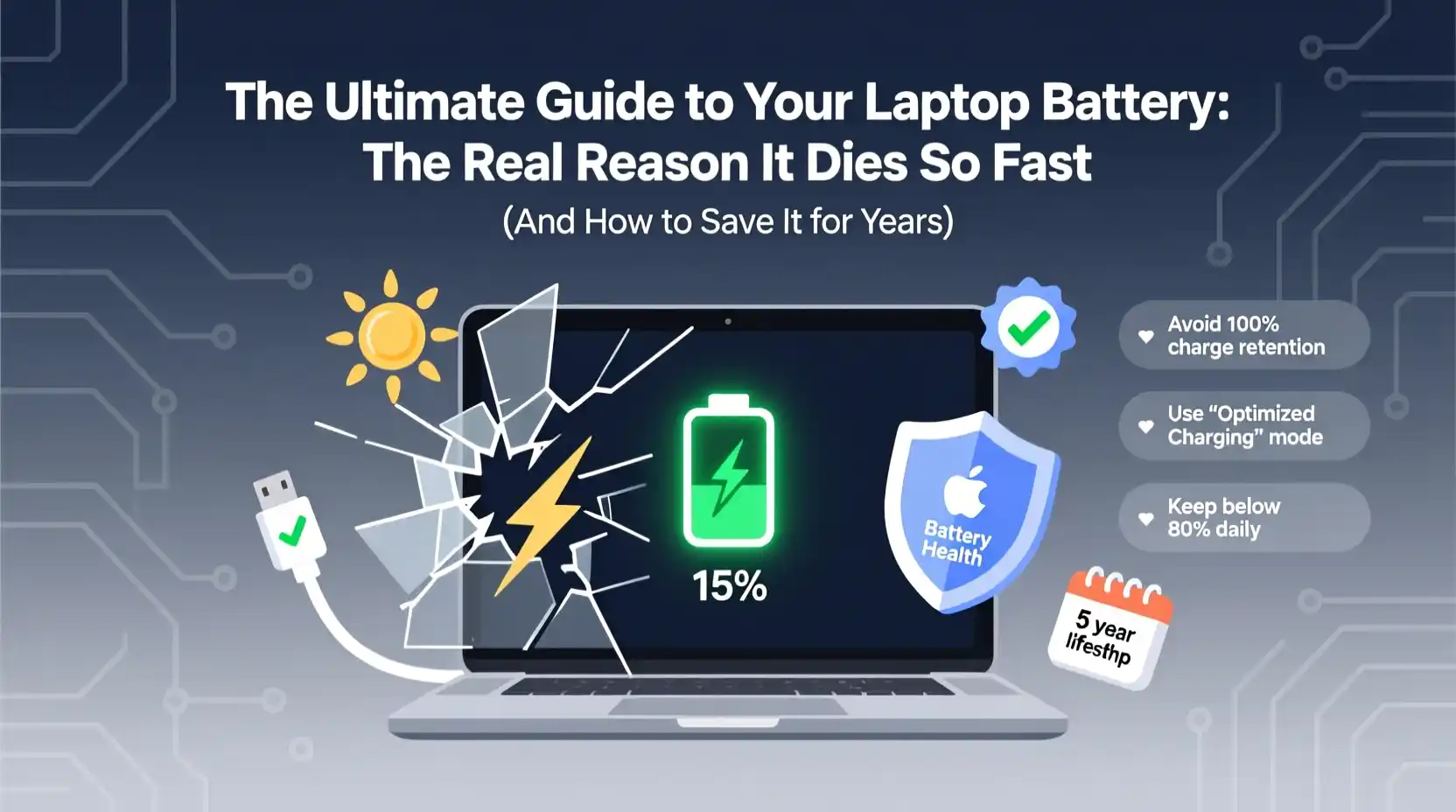
The Ultimate Guide to Your Laptop Battery: The Real Reason It Dies So Fast (And How to Save It for Years)
Introduction: The Universal Frustration and the Hidden Cost
It’s a scene played out in countless coffee shops, lecture halls, airport lounges, and home offices every single day. You’ve unboxed your new laptop, a sleek and powerful machine that promised freedom from the wall socket. For the first glorious weeks, or even months, it delivers. You work through a full day, stream a movie in the evening, and still have power to spare. The battery icon feels less like a countdown timer and more like a permanent fixture.
Then, almost imperceptibly at first, the change begins. The full-day stamina shrinks to a half-day. That half-day becomes a frantic few hours. Soon, you find yourself playing a familiar, nerve-wracking game: “Can I finish this task before it dies?” You become an expert at spotting available power outlets, your charger a permanent resident in your bag. The promise of portability has been broken, replaced by the anxiety of a shrinking battery.
This frustration isn’t just a minor inconvenience; it has real-world economic and environmental consequences. A laptop with a degraded battery is functionally less valuable, forcing users into costly upgrades or replacements sooner than necessary. This cycle contributes to the growing problem of electronic waste, as millions of otherwise perfectly functional laptops are prematurely retired because their heart—the battery—has given out.
The real reason your battery dies so fast isn’t a single, simple villain you can easily point to. It’s a complex and fascinating interplay of immutable physics, intricate chemistry, and our own often-uninformed digital habits. To truly solve the problem, we need to stop thinking of the battery as a mysterious black box and start understanding it as a sophisticated, consumable component—much like a high-performance tire on a car. It’s designed to wear out, but with the right knowledge and care, you can dramatically extend its useful life, saving you money, reducing your environmental impact, and, most importantly, restoring that feeling of true mobile freedom.
This guide is your definitive manual. We will embark on a deep dive into everything you need to know. We’ll start by peeling back the layers of technology, exploring the history and anatomy of the batteries that power our world. We’ll then dissect the two primary forces working against your battery: the inevitable chemical aging and the avoidable digital drains. Finally, we’ll arm you with a comprehensive, practical action plan—splitting advice into long-term health strategies and immediate power-saving tactics—that will empower you to take control.
By the end of this journey, you will not only understand why your battery is failing but will possess the knowledge to make it last significantly longer, potentially adding years to its lifespan and hundreds of hours of usable power to your day.
Part I: The Anatomy of a Laptop Battery – A Deep Dive into the “Why”
To fix a problem, you must first understand its root cause. Your laptop battery isn’t magic; it’s a marvel of electrochemical engineering. This section will demystify the technology, explaining the fundamental principles that govern its life and, ultimately, its death.
Chapter 1: A Brief History of Portable Power – From Lead-Acid to Lithium-Ion
To appreciate why we use lithium-ion (Li-ion) batteries today, it’s helpful to understand where we came from. The quest for portable power has been a long and winding road, with each generation of battery technology bringing its own set of rules and limitations.
The Heavyweights: Lead-Acid and Nickel-Cadmium (NiCd) The earliest portable computers were behemoths, often powered by heavy, bulky lead-acid batteries—the same kind used in cars. They were reliable but impractical for true mobility. The first major step forward was the Nickel-Cadmium (NiCd) battery, which became popular in the 1980s and 90s for laptops and other consumer electronics.
NiCd batteries had several significant drawbacks that shaped the “battery wisdom” of an entire generation:
- The “Memory Effect”: This was the most infamous issue. If you repeatedly recharged a NiCd battery before it was fully discharged, it would “forget” its full capacity. It would effectively “remember” the point at which you started charging it as its new zero percent. This led to the ubiquitous advice: “Always run your battery down to zero before charging it again.”
- Toxicity: Cadmium is a highly toxic heavy metal, posing significant environmental hazards during disposal.
- Low Energy Density: NiCd batteries were heavy and bulky for the amount of power they could store.
The Interim Step: Nickel-Metal Hydride (NiMH) Nickel-Metal Hydride (NiMH) batteries arrived as an improvement over NiCd in the 1990s. They offered better energy density (meaning more power for less weight) and eliminated the toxic cadmium. They were also less susceptible to the memory effect, though not entirely immune. However, they still suffered from relatively high self-discharge rates (they would lose power even when not in use) and couldn’t match the performance demands of increasingly powerful laptops.
The Revolution: Lithium-Ion (Li-ion) The commercial introduction of the lithium-ion battery in 1991 by Sony was a watershed moment for portable electronics. It was a game-changer, and its advantages are why it still dominates the market today:
- High Energy Density: Li-ion batteries can store significantly more energy in a much smaller and lighter package than any previous technology. This is the single most important reason for the sleek, thin laptops we have today.
- No “Memory Effect”: This is crucial. Li-ion batteries do not suffer from the memory effect. In fact, the opposite is true: they prefer partial discharges over deep, full discharges. The old advice to “run it down to zero” is now actively harmful to Li-ion batteries.
- Low Self-Discharge: A Li-ion battery loses only a small percentage of its charge per month when not in use, making it ideal for devices that might sit idle for a while.
- High Voltage: Each Li-ion cell produces a higher voltage than its nickel-based counterparts, meaning fewer cells are needed to power a device.
This historical context is vital because much of the outdated advice about battery care still circulates online. Understanding that we’ve moved from a paradigm of “full discharges are good” (NiCd) to “partial charges are best” (Li-ion) is the first step toward proper battery management.
Chapter 2: Deconstructing the Lithium-Ion Cell – The Science Inside
Now, let’s look inside the modern Li-ion battery itself. A laptop battery pack isn’t a single cell; it’s a collection of individual Li-ion cells working together. Think of it like a team of horses, all pulling in the same direction to power your laptop.
The Core Components of a Cell: Each cylindrical or pouch-shaped cell contains four key components:
- Anode (Negative Electrode): Typically made of graphite. During discharge, lithium ions are stored (or “intercalated”) within the graphite layers.
- Cathode (Positive Electrode): This is the most complex and varied part. It’s a metal oxide, and its composition determines the battery’s characteristics. Common types include Lithium Cobalt Oxide (LCO), Lithium Manganese Oxide (LMO), Lithium Nickel Manganese Cobalt Oxide (NMC), and Lithium Iron Phosphate (LFP).
- LCO offers high energy density but is less stable and has a shorter lifespan. It’s common in smartphones and thin-and-light laptops where space is at a premium.
- NMC is a popular choice for EVs and laptops, offering a good balance of energy, power, and longevity.
- LFP is known for its exceptional longevity, safety, and thermal stability, but it has a lower energy density. It’s becoming more common in laptops where battery life and durability are prioritized over ultimate thinness.
- Electrolyte: This is a chemical medium, usually an organic solvent, that allows lithium ions to move between the anode and cathode. It’s the “river” that the ions travel through.
- Separator: A thin, porous membrane that physically separates the anode and cathode, preventing them from touching and causing a short circuit, while still allowing lithium ions to pass through.
The Electrochemical Dance: Charging and Discharging The magic of a battery is a reversible chemical reaction called an electrochemical process.
- Discharging (Powering Your Laptop): When you use your laptop, lithium atoms in the anode give up an electron, which travels through the external circuit to your laptop’s components, providing power. The now positively charged lithium ion (Li+) moves through the electrolyte and separator to get embedded in the cathode.
- Charging (Plugging In): When you plug in your charger, an external voltage source forces the process into reverse. Electrons are pushed back into the anode, and the lithium ions are pulled from the cathode, travel through the electrolyte, and re-embed themselves in the graphite anode.
This constant shuttling of lithium ions back and forth is what powers your device. However, this process is not 100% efficient. Each cycle introduces tiny, imperceptible changes that, over hundreds of cycles, lead to the battery’s eventual decline.
Chapter 3: The Inevitable Killers – Chemical Aging in Detail
This is the core of the problem. Your battery is dying because of chemistry. These are the forces you can’t stop, but you can dramatically slow their effects.
- Cycle Count: The Wear and Tear of Use The original article introduced this concept, but let’s go deeper. A “cycle” is defined as a full charge and discharge. However, it’s cumulative. Using 50% of your battery one day, charging it back to 100%, and then using 50% the next day equals one complete cycle.
What happens during a cycle that causes wear? Two main things:
- Solid Electrolyte Interphase (SEI) Layer Growth: On the very first charge, a thin, protective layer called the SEI forms on the anode. This is a good thing; it stabilizes the battery. However, with every subsequent charge (especially at high voltages and temperatures), this layer grows thicker. A thicker SEI layer acts as an insulator, trapping lithium ions that can no longer participate in the charge-discharge cycle. This permanently reduces the battery’s capacity. It’s like a pipe slowly getting clogged with mineral deposits; less flow (power) can get through over time.
- Cathode Degradation: The cathode also breaks down. High voltage (keeping the battery at 100%) can cause the metal oxide structure to degrade, reducing its ability to accept and release lithium ions. This is another form of permanent capacity loss.
This is why shallow discharges are better. A discharge from 100% to 50% puts less stress on the electrodes than a discharge from 100% to 0%.
- High Heat: The Number One Enemy If chemical aging is the disease, heat is the accelerant. This cannot be overstated. Heat is the single most destructive force for your battery’s health.
- The Science of Heat and Chemistry: The chemical reactions inside the battery, including the unwanted side reactions that cause degradation, are governed by the Arrhenius equation. In simple terms, this equation states that for every 10°C (18°F) increase in temperature, the rate of these chemical reactions roughly doubles. This means that a laptop running at 40°C will degrade its battery twice as fast as one running at 30°C, all else being equal.
- Sources of Heat: Where does this heat come from?
- Internal Components: The CPU and GPU are the primary heat generators inside your laptop. Running intensive tasks like gaming, video editing, or compiling code makes them work hard and produce a lot of heat.
- Charging: The process of forcing ions into the anode generates heat. Fast charging is especially heat-intensive.
- Ambient Temperature: Leaving your laptop in a hot car (where temperatures can soar to 60°C or 140°F) is catastrophic for the battery. Even direct sunlight on a black laptop can raise its temperature significantly.
- Blocked Vents: Using your laptop on a soft surface like a bed, couch, or pillow is a common mistake. This blocks the air intakes and exhausts, trapping heat inside and causing the internal temperature to skyrocket.
- Time: The Inevitable March of Calendar Aging Even if you bought a laptop, put it in its box, and stored it in a cool, dark place, its battery would still degrade. This is called “calendar aging.”
- The Cause: The electrolyte inside the battery is not perfectly stable. It slowly decomposes over time, and the internal resistance of the cell gradually increases. This reduces its ability to deliver current effectively. The battery’s self-discharge rate also contributes to this slow decline.
- Optimal Storage: If you need to store a laptop for an extended period (months or more), the ideal state is to store it with a charge level between 40% and 60% in a cool environment (around 15°C or 59°F). Storing it at 100% charge puts maximum stress on the cathode, while storing it at 0% can lead to it dropping to a critically low voltage from which it may never recover.
- High Voltage Stress: The Danger of 100% This is a critical concept that underpins the “80/20 Rule.” Keeping a Li-ion battery at a high state of charge (above 80%) for extended periods is stressful.
- Why High Voltage is Bad: A full charge (100%) corresponds to a high voltage (typically 4.2V per cell). At this high voltage, the cathode is in a highly reactive state, which accelerates its degradation. The electrolyte is also more prone to oxidation at high voltages, which consumes lithium and increases internal resistance.
- The Sweet Spot: Keeping the battery between 20% and 80% keeps the voltage in a much more stable range, significantly slowing down these degradation processes. This is why many modern laptops now include built-in features to limit the maximum charge to 80% or 85%.
Part II: The Digital Vampires – Understanding Modern Power Drains
While chemical aging determines the long-term potential of your battery, it’s the digital drains that determine how much life you get out of a single charge today. Modern software and hardware are incredibly powerful, but that power comes at a cost: a voracious appetite for electricity.
Chapter 4: The Display – Your Biggest and Most Obvious Power Hog
For virtually all laptops, the screen is the single largest consumer of power. Managing it is the quickest way to see a dramatic improvement in battery life.
- Brightness and Backlight Technology: The most obvious factor is brightness. The backlight is what illuminates the pixels so you can see the image. Most laptops use LED (Light Emitting Diode) backlights, which are more efficient than the old CCFL (Cold Cathode Fluorescent Lamp) backlights, but they still draw significant power. Running your screen at 100% brightness can consume 20-40% of your total battery power, depending on the laptop and what you’re doing. Reducing brightness to a comfortable 50% or less can instantly add hours to your runtime.
- LCD vs. OLED: A Fundamental Difference: Not all screens are created equal.
- LCD (Liquid Crystal Display): This is the most common type. It works by using a backlight that shines through a layer of liquid crystals and color filters. To display black, the crystals block the light, but the backlight is still on, consuming power.
- OLED (Organic Light Emitting Diode): This technology, found in many high-end laptops (like the Dell XPS 13/15 and some Samsung models), works differently. Each individual pixel generates its own light. To display black, the pixel simply turns off completely. This means that for dark or black content, OLED screens are vastly more power-efficient than LCDs.
This is why “Dark Mode” can significantly save battery on OLED screens, but has a negligible effect (or can even use more power) on traditional LCD screens.
- Refresh Rate: The Hidden Drain: Modern laptops, especially gaming and creative models, often come with high-refresh-rate displays (120Hz, 144Hz, or even higher). This means the screen redraws the image 120 or more times per second, compared to the standard 60Hz. While this results in smoother motion, it nearly doubles the power draw of the display panel itself. Most laptops have settings to switch between a high refresh rate (for gaming or creative work) and a lower, more efficient 60Hz mode (for general use). Switching to 60Hz is a massive battery saver.
- Resolution: More Pixels, More Power: A 4K display has four times as many pixels as a standard 1080p (FHD) display. The GPU has to work harder to drive all those pixels, consuming more power. While a 4K screen offers stunning clarity, if you’re prioritizing battery life over visual fidelity, running at a lower resolution (if your laptop allows it) or choosing an FHD model in the first place is a wise decision.
Chapter 5: The CPU and GPU – The Power-Hungry Brains of the Operation
The processor (CPU) and graphics chip (GPU) are the engines of your laptop. Their power consumption can vary dramatically based on the task at hand.
- The CPU’s Balancing Act: Performance vs. Power Modern CPUs are incredibly complex and have multiple power states. They can ramp up their clock speed to handle a demanding task for a few seconds (a “turbo boost”) and then immediately drop back down to a low-power state when idle. This is managed by sophisticated power management features in both the hardware and the operating system.
- Performance Modes: As mentioned in the original article, Windows’ “Best performance” mode and macOS’s “High Power” mode keep the CPU in its higher-performance states for longer. This is great for demanding tasks but drains the battery quickly. Conversely, “Power saver” or “Low power” modes are more aggressive about putting the CPU into low-power states, sacrificing some performance for significant battery gains.
- Core Count: More CPU cores generally mean more potential power draw, especially when all cores are active. However, for simple tasks, a modern multi-core CPU can often shut down unused cores to save power.
- Dedicated vs. Integrated Graphics: This is one of the most important distinctions for battery life.
- Integrated Graphics (iGPU): The GPU is built onto the same chip as the CPU. It shares system RAM. It’s very power-efficient and perfectly adequate for everyday tasks like web browsing, writing documents, and watching videos. Intel’s Iris Xe and AMD’s Radeon graphics are common examples.
- Dedicated Graphics (dGPU): This is a separate, powerful chip from manufacturers like NVIDIA (GeForce/RTX) or AMD (Radeon). It has its own dedicated video memory (VRAM). It’s essential for demanding tasks like modern gaming, 3D rendering, and AI/machine learning work, but it draws a lot more power than an iGPU.
Many modern laptops with a dGPU have a technology called NVIDIA Optimus or AMD Switchable Graphics. The system automatically switches between the power-efficient iGPU for everyday tasks and the powerful dGPU when a demanding application is launched. However, this switching isn’t always perfect, and sometimes a dGPU can be engaged when it’s not needed, draining the battery unnecessarily.
Chapter 6: The Silent Killers – Background Processes and Connectivity
These are the insidious drains that happen without you even realizing it, slowly sipping power in the background until your battery is gone.
- Background Apps and Services: When you start your laptop, dozens of processes and applications launch in the background.
- Cloud Syncing: Services like Dropbox, Google Drive, and OneDrive are constantly running, monitoring for file changes and uploading/downloading data. This involves network activity, disk I/O, and CPU usage, all of which consume power.
- Update Checkers: Many applications (Adobe, Java, various game launchers) have background updaters that periodically phone home to check for new versions.
- Messaging Apps: Slack, Discord, and Microsoft Teams are always connected, receiving notifications and syncing messages.
- System Services: The operating system itself runs many background services for indexing, maintenance, and security.
While some of these are necessary, many are not. Closing them can provide a noticeable boost to battery life.
- The Web Browser: The Ultimate Power Hog The modern web browser is arguably the most power-hungry application on most people’s laptops.
- Tabs, Tabs, and More Tabs: Every open tab is a separate process, consuming RAM and CPU cycles. A browser with 20-30 tabs open can be a massive drain, even if you’re only actively looking at one.
- JavaScript and Web Ads: Many websites are laden with complex JavaScript, auto-playing videos, and animated ads that force the CPU to work constantly.
- Inefficient Websites: A poorly coded website can cause a browser’s process to spin out of control, using 100% of a CPU core and draining the battery at an alarming rate.
- Connectivity: Wi-Fi and Bluetooth Radios: The wireless radios in your laptop are constantly drawing power.
- Searching for a Signal: Wi-Fi and Bluetooth use more power when they are searching for a weak signal or trying to connect to a network. If you’re in an area with spotty Wi-Fi, your radio will be working overtime, draining the battery faster.
- Active Transfers: Downloading large files or streaming high-bitrate video over Wi-Fi is a significant power draw.
- Peripherals: Connected Bluetooth devices like mice, keyboards, and headphones also draw a small amount of power.
Part III: The Ultimate Battery Preservation Guide (The “How-To”)
Now that we understand the “why,” we can dive into the “how.” This section is a practical, step-by-step guide to implementing strategies that will both extend the long-term health of your battery and squeeze more hours out of every charge.
Chapter 7: Longevity Strategies – Caring for Your Battery’s Health
This is about proactive, long-term care. Think of it as the maintenance schedule for a high-performance car. These habits will slow down the inevitable chemical aging and add years to your battery’s useful life.
- The Art of Thermal Management: Keep It Cool This is the single most important long-term strategy.
- Mind Your Surface: Never use your laptop on a bed, couch, pillow, or blanket. These soft surfaces block the air vents that are designed to draw cool air in and expel hot air. Always use your laptop on a hard, flat surface like a desk or table.
- Clean Your Vents: Over time, dust and lint can clog the cooling fins and vents, reducing airflow and causing the laptop to run hotter. Every few months, use a can of compressed air to blow the dust out of the vents (use short bursts and be careful not to spin the fans too fast).
- Beware of the Sun: Never leave your laptop in direct sunlight or inside a car on a hot day. The internal temperature can quickly rise to levels that cause permanent battery damage.
- Consider a Cooling Pad (with a caveat): Cooling pads with fans can help lower the temperature of the laptop’s chassis, which is generally good. However, they don’t directly cool the battery cells inside. They are most useful for gaming laptops that run very hot under load. For most users, proper ventilation is more important.
- Listen to Your Fans: If your laptop’s fans are constantly running at high speed, it’s a sign that it’s overheating. Investigate the cause—is it a background process, a demanding application, or blocked vents?
- The Science of Charging – Mastering the 80/20 Rule This is the second pillar of long-term battery health. Your goal is to minimize the time your battery spends at 100% and 0% charge.
- The Golden Rule: For optimal longevity, keep your battery’s charge level between 20% and 80% as much as possible. This keeps the cell voltage in a stable range, dramatically slowing the degradation of the cathode and the growth of the SEI layer.
- Plug In When You Can, But Don’t Overcharge: If you’re working at a desk for several hours, it’s actually better to keep the laptop plugged in. However, you need to manage this correctly (see the next point). It’s a myth that “using it while charging” damages the battery; the laptop’s power management system is designed to handle this. The damage comes from keeping it at 100% for extended periods.
- Use Your Laptop’s Built-in Charge Limiter: This is the most effective and easiest way to implement the 80/20 rule. Most major manufacturers now include software or BIOS settings that automatically stop charging the battery at a user-defined threshold (usually 80% or 85%).
- Windows Laptops (Dell, Lenovo, HP, etc.): Look for an application pre-installed by the manufacturer (e.g., Dell Power Manager, Lenovo Vantage, HP Support Assistant). Within these apps, you will find battery conservation or health settings. Enable the mode that caps charging at 80%. You may need to go into the BIOS/UEFI settings to find this option on some models.
- Apple MacBooks (macOS): Go to System Settings > Battery > Battery Health. Here you will find an “Optimized Battery Charging” option. macOS learns your daily routine and waits to finish charging past 80% until it thinks you’ll need to use it. For more granular control, third-party apps like AlDente are highly recommended by the Mac community. They allow you to set a precise charging limit (e.g., 80%) and even stop charging when you unplug and replug the power adapter.
- Avoid Deep Discharges: Try not to let your battery regularly drop below 20%. A deep discharge puts stress on the battery. The monthly “calibration” mentioned later is an exception, but it should be infrequent.
- Fast Charging vs. Slow Charging: Fast charging is convenient but generates more heat, which we know is bad for the battery. If you’re not in a hurry, using a lower-wattage charger (e.g., a 45W charger instead of a 95W or 140W one) will charge more slowly but more gently, generating less heat and being better for the battery in the long run.
- Calibration and Maintenance: Keeping Your Battery Gauge Honest Over time, the software that estimates your battery’s charge level can become inaccurate. Calibration helps reset it.
- The Monthly Calibration Ritual: Once a month, perform this simple procedure:
- Use your laptop on battery power until it reaches around 20% and warns you to plug in. Do not let it shut down automatically.
- Save your work and let it continue to run until it reaches about 5-10%.
- Plug it in and charge it uninterrupted back to 100%.
- Let it stay at 100% for a couple of hours to ensure all cells are balanced.
- Why It Works: This process helps the battery’s management system (BMS) re-learn the actual capacity of the battery, providing a more accurate estimate of the remaining percentage and time. It’s not “fixing” the battery chemically, but it’s fixing the reporting of the battery’s state, which is crucial for knowing when you really need to charge.
Chapter 8: Maximizing Your Minutes – Squeezing Every Last Drop of Power
This is about what you can do right now to extend your current charge. These are the immediate, tactical adjustments you can make when you’re away from an outlet and the battery is getting low.
- The Display, Revisited: Your First Line of Defense This is the easiest and most effective set of tactics.
- Dim Your Screen: As previously stated, this is the #1 battery-saving tip. Reduce the brightness to the lowest level you find comfortably usable. The difference between 100% and 50% brightness can be several hours of runtime.
- Use Dark Mode (on OLED screens): If your laptop has an OLED display, using Dark Mode in your OS and in supported applications (like Microsoft Office, many web browsers, etc.) will provide a noticeable battery boost by turning off more pixels.
- Lower Your Refresh Rate: If you have a high-refresh-rate screen (120Hz+), go into your display settings and switch it to 60Hz. This will make motion slightly less smooth but will dramatically reduce the display’s power consumption.
- Reduce Screen Timeout: Set your screen to turn off after a short period of inactivity (e.g., 1-2 minutes). This prevents it from staying on and draining power when you step away.
- Software and OS Triage: A Masterclass in Power Management Take control of your operating system’s power settings.
For Windows Users:
- Activate Battery Saver: Go to Settings > System > Battery & power. Battery Saver mode automatically kicks in at 20% by default, but you can enable it manually at any time from the battery icon in the taskbar. It reduces screen brightness, limits background activity for some apps, and pushes the OS into a more power-efficient state.
- Tweak Your Power Plan: Go to Control Panel > Hardware and Sound > Power Options. Here you can choose between “Balanced,” “Power Saver,” and “High Performance.” Select “Power Saver” for maximum battery life. You can also click “Change plan settings” and then “Change advanced power settings” to fine-tune things like when the display turns off and when the computer sleeps.
- Ruthlessly Manage Background Apps: Go to Settings > Privacy > Background apps. Here you will see a list of applications. Turn off the toggle for any app that you don’t need to be running in the background (e.g., games, photo editors, etc.).
- Use Task Manager: Press Ctrl+Shift+Esc to open Task Manager. Click on the “Processes” tab. If you don’t see a “Power usage” column, right-click the column headers and add it. Sort by “Power usage” to see which applications are the biggest hogs right now. If you see something unnecessary using a lot of power, you can select it and click “End task.”
For macOS Users:
- Activate Low Power Mode: Go to System Settings > Battery. Here you can turn on “Low Power Mode” to reduce energy consumption. You can also set it to turn on automatically when using battery, or only when the battery is low.
- Check Energy Impact: Go to Applications > Utilities > Activity Monitor. Click on the “Energy” tab. This will show you which apps are using the most “Energy Impact.” This is a great way to identify a runaway process. You can select an app and click the “X” button to quit it.
- Manage Login Items: Go to System Settings > General > Login Items. Review the list of apps that “Open at Login.” Turn off anything you don’t need immediately upon starting your computer. This prevents them from running in the background from the moment you boot up.
- Application Auditing: Use the Right Tool for the Job Be mindful of what applications you use and how you use them.
- The Browser is Your Enemy: For simple tasks like writing a document, use a dedicated application like Microsoft Word or Google Docs offline instead of keeping a heavy browser with multiple tabs open. If you must browse, try to keep the number of tabs to a minimum.
- Choose an Efficient Browser: Studies consistently show that Microsoft Edge (on Windows) and Apple’s Safari (on macOS) are the most battery-efficient browsers. Google Chrome and Firefox are often more power-hungry. If battery life is your priority, consider switching.
- Avoid Battery-Killing Tasks: Video conferencing (Zoom, Teams), gaming, and video editing are the most demanding tasks. If you need to do these, try to do them while plugged in. If you must do them on battery, close every other non-essential application and dim your screen.
- Connectivity Hygiene: Disconnect to Save Power
- Turn Off Wi-Fi and Bluetooth: If you’re working on a document offline and don’t need an internet connection, turn off Wi-Fi and Bluetooth from the system tray or menu bar. This stops the radios from constantly searching for signals.
- Unplug Peripherals: Unplug any USB devices you aren’t actively using, especially external hard drives, which draw power both from the USB port and from their own motors. Even a simple mouse or keyboard draws a small amount of power.
Part IV: Advanced Topics and Future Horizons
For those who want to go even further, this section covers troubleshooting, replacement, and a glimpse into the future of battery technology.
Chapter 9: Troubleshooting and Knowing When to Replace
Even with the best care, all batteries eventually degrade. Here’s how to diagnose a failing battery and what to do about it.
- How to Generate a Detailed Battery Report: Both Windows and macOS have built-in tools to give you a deep look at your battery’s health.
- On Windows: Open the Command Prompt as an administrator. Type the command powercfg /batteryreport and press Enter. This will generate a file named battery-report.html saved in your C:\Users[Your Username]\ folder. Open this file in a web browser. It contains a wealth of information, but the most important sections are:
- Design Capacity (Full Charge Capacity): This shows the battery’s original capacity versus its current maximum capacity. If your current capacity is significantly lower (e.g., below 70-75%) than the design capacity, the battery is heavily degraded.
- Cycle Count: This shows the total number of charge cycles the battery has been through.
- Recent Usage: This graph shows your battery drain and charge levels over the last few days, which can help you spot applications or behaviors that are draining power quickly.
- On macOS: Hold the Option key and click the Apple menu. Select “System Information.” Go to the “Hardware” section in the sidebar and click on “Power.” Here you will find information including:
- Cycle Count: Similar to Windows, this tells you how many cycles the battery has been through.
- Condition: This will typically say “Normal.” If it says “Replace Soon,” “Replace Now,” or “Service Battery,” it’s a clear sign that the battery is at the end of its useful life.
- Maximum Capacity: (In newer macOS versions in System Settings > Battery Health) This shows the battery’s capacity relative to when it was new.
- Signs of a Failing Battery:
- Dramatically Reduced Runtime: The most obvious sign. A full charge lasts a fraction of what it used to.
- Sudden Shutdowns: The laptop shuts off unexpectedly, often at a charge level that appears to be 20-30%. This is a sign that the battery can no longer deliver the required voltage under load.
- Swelling: This is a serious safety issue. If your laptop’s trackpad, chassis, or keyboard starts to bulge or lift, the battery is swelling. Stop using the laptop immediately, unplug it, and do not charge it. Take it to a professional for replacement. A swollen battery is a fire hazard.
- Won’t Charge Past a Certain Percentage: The battery gets stuck at, for example, 60% and won’t charge any further.
- Replacement: DIY vs. Professional:
- Professional Replacement: For most modern ultrabooks (like Dell XPS, HP Spectre, MacBook Air/Pro), the battery is glued in and difficult to access safely. It is highly recommended to have it replaced by an authorized service provider or a reputable repair shop. They have the tools and expertise to do it without damaging the device.
- DIY Replacement: For some older or more user-serviceable laptops (like many ThinkPads), replacing the battery yourself can be straightforward. You can usually find replacement batteries online and tutorials on sites like iFixit. However, you must be extremely careful. Puncturing a Li-ion battery can cause it to release toxic fumes or catch fire. Always disconnect the laptop from power and ground yourself before attempting any internal repair.
Chapter 10: The Future of Battery Technology
The lithium-ion battery has been king for 30 years, but researchers are constantly working on the next big thing.
- Solid-State Batteries: This is the holy grail. Instead of a liquid electrolyte, they use a solid material. This promises much higher energy density (longer life), faster charging, and, most importantly, improved safety as they are not flammable. They are still a few years away from mass-market laptops due to manufacturing challenges and cost.
- Silicon Anodes: Replacing the graphite anode with silicon could dramatically increase the amount of lithium the anode can hold, boosting capacity by 20-40%. The challenge is that silicon expands and contracts significantly during charging, which can damage the battery. Companies are making progress with silicon-graphite composite anodes.
- Lithium-Sulfur (Li-S) and Lithium-Air: These are more experimental technologies that promise massive leaps in energy density but face significant technical hurdles regarding cycle life and stability.
- Smarter Software: On the digital side, we can expect to see more AI-driven power management. Operating systems will become even smarter at predicting user behavior and allocating power resources more efficiently, shutting down components and processes with greater precision to save every last joule of energy.
Conclusion: Your Action Plan for a Longer-Lasting Battery
Your laptop battery is dying fast because it is fighting a war on two fronts. On one side, the relentless, inevitable forces of chemical aging—heat, high voltage, and the passage of time—are slowly eroding its maximum capacity. On the other side, the voracious digital demands of modern hardware and software are rapidly draining the capacity it has left.
But you are not helpless. By understanding this dual battle, you can take control and become a savvy battery manager. Your action plan is twofold:
For Long-Term Health (Slowing Chemical Aging):
- Keep it Cool: This is your #1 priority. Always use your laptop on a hard surface, keep the vents clean, and never leave it in a hot environment.
- Master the 80/20 Rule: Avoid keeping your battery at 100% or 0% for long periods. Use your laptop’s built-in charge limiting feature to cap charging at 80%. This is the single most effective long-term strategy.
- Calibrate Monthly: Once a month, let the battery drain to around 10% and then charge it uninterrupted to 100% to keep the battery gauge accurate.
For More Hours Today (Fixing Digital Drains):
- Dim Your Screen: This is the quickest, most effective way to gain runtime. Lower brightness to the minimum comfortable level.
- Enable Battery Saver Mode: Use the built-in Low Power/Battery Saver modes in Windows and macOS to automatically optimize system settings.
- Audit Your Apps: Be ruthless. Close unused browser tabs and background applications. Use Task Manager or Activity Monitor to identify and kill power-hungry processes.
- Disconnect Peripherals: Unplug USB devices and turn off Wi-Fi and Bluetooth when not in use.
By integrating these habits into your daily routine, you are no longer a passive victim of a dying battery. You are an active participant in its care. You can extend its lifespan from a frustrating year or two to a robust three, four, or even five years. You will save money, reduce e-waste, and reclaim the true freedom and portability that your laptop was meant to provide. The power to save your battery is, quite literally, in your hands.
Have any thoughts?
Share your reaction or leave a quick response — we’d love to hear what you think!
-
 0
0
-
 0
0
-
 0
0
-
 0
0
-
 0
0
-
 0
0
